SSH Alerts
03/09/2024
Introduction
In the world of cybersecurity, monitoring SSH login attempts on your server is crucial. Unauthorized access or brute-force attacks can compromise your system. To stay ahead of potential threats, I’ve created a Python script that monitors SSH login attempts and sends alerts to a Discord channel whenever suspicious activity is detected. This guide will walk you through setting up and configuring this script, running it as a service, and customizing it to suit your needs.
Why monitor SSH Logins?
SSH (Secure Shell) is a powerful protocol used to securely access remote servers. However, it’s also a common target for attackers attempting to gain unauthorized access. By monitoring SSH login attempts, you can be alerted to potential threats in real time and take appropriate action.
Features of the SSH Login Alert Script
- Real-time Monitoring: The script continuously monitors your server’s SSH login attempts by reading the /var/log/auth.log file.
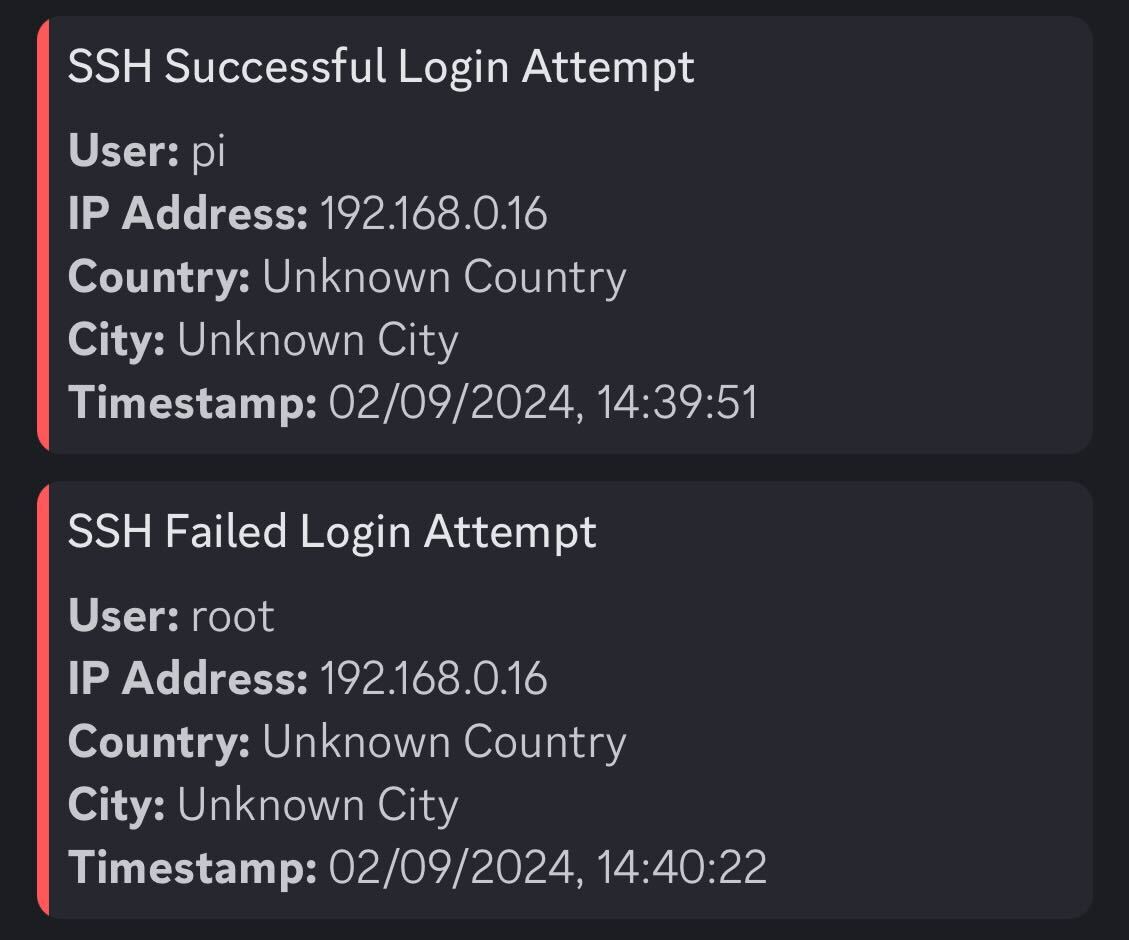
- Discord Notifications: It sends an alert to a specified Discord channel whenever a login attempt is detected:
- IP Whitelisting: You can whitelist specific IP addresses or subnets, preventing alerts for logins from trusted sources.
- IP Geolocation: The script attempts to determine the country and city of the IP address from which the login attempt originated.
- Runs as a Service: You can configure the script to run as a systemd service, ensuring it starts automatically and runs continuously.
Installation
Prerequisites
Before you begin, ensure you have the following:
- A server running a Linux-based OS (e.g., Raspberry Pi OS).
- Python 3.x installed on your server.
- A Discord webhook URL for sending notifications.
- Basic knowledge of the Linux command line.
- Clone the Repository Start by cloning the script from the repository:
git clone https://github.com/nplachkov/ssh-alerts.git
cd ssh-alerts- Configure the Discord Webhook The script sends alerts to a Discord channel via a webhook. To configure this:
Place your Discord webhook URL in a file named 'discord-webhook.txt' within the project directory:
echo "https://your-discord-webhook-url" > discord-webhook.txt- Configure IP Whitelisting
To avoid unnecessary alerts, you can whitelist specific IP addresses or subnets by adding them to the 'whitelist.txt' file in the project directory. This file should contain one IP or subnet per line. For example:
echo "10.0.0.1" >> whitelist.txt
echo "192.168.0.0/24" >> whitelist.txt
- CIDR Notation: Allows you to whitelist an entire range of IP addresses (e.g. 192.168.0.0/24).
- Single IPs: Whitelist individual IP addresses (e.g. 10.0.0.1).
-
Install Required Python Libraries Install the necessary Python libraries using pip:
pip install requests pytz -
Running the Script You can run the script directly using Python to test it:
python3 ssh-alerts.py -
Running as a Systemd Service To ensure the script runs continuously and starts automatically on boot, you can set it up as a systemd service.
-
Creating the Service File
sudo nano /etc/systemd/system/ssh-alerts.service -
Add the following content:
    [Unit]
    Description=SSH Alerts Service
    After=network.target

    [Service]
    Type=simple
    ExecStart=/usr/bin/python3 [PATH_TO_THE_SCRIPT]/ssh-alerts/ssh-alerts.py
    WorkingDirectory=[PATH_TO_THE_SCRIPT]/ssh-alerts/ssh-alerts.py
    Restart=on-failure
    User=piaaaasas
    Group=pi

    [Install]
    WantedBy=multi-user.target
and save with
CTRL+X,Y,Enter. -
Starting and Enabling the Service:
sudo systemctl daemon-reload -
Start the service:
sudo systemctl start ssh-alerts.service -
Enable the service to start on boot:
sudo systemctl enable ssh-alerts.service
-
Customizing the Script
Timezone Configuration
The script includes a timezone setting to ensure the timestamps in your alerts match your local time. By default, the script is set to Europe/Sofia (Bulgaria). You can change this by modifying the 'TIMEZONE' variable in the script:
TIMEZONE = 'Europe/Sofia'Replace 'Europe/Sofia' with the appropriate timezone for your location. You can find a list of supported timezones here.
IP Geolocation
The script uses the 'ipinfo.io' API to retrieve geolocation data (country and city) for the IP addresses involved in the SSH login attempts. If the API cannot determine the location, it will default to "Unknown Country" and "Unknown City". This fallback ensures that you still receive meaningful alerts even when the location data is unavailable.
Conclusion
By following this guide, you’ve set up a robust monitoring system for SSH login attempts on your server. This script not only provides real-time alerts for unauthorized access attempts but also offers flexibility through IP whitelisting and timezone customization. Running it as a systemd service ensures that your server is continuously monitored without manual intervention.
To further enhance your server's security, consider restricting SSH access to trusted networks using UFW. This simple firewall setup can significantly reduce the risk of unauthorized login attempts. Check out my UFW guide to learn more.
With this setup, you can rest easy knowing that you’ll be promptly alerted to any suspicious activity on your server. Stay safe and secure!